
Download Maxthon – Powerful Customizable Browser Alternative
Overview
Maxthon Classic is a full‑featured web browser that positions itself as a versatile alternative to the dominant players in the market. Built on an Internet Explorer rendering engine, Maxthon offers a depth of configuration that rivals professional graphics software. If you enjoy tinkering with menus, skins, and toolbar layouts, Maxthon will feel like a playground where every UI element can be resized, moved, or hidden.
The browser opens most of its settings in separate tabs rather than pop‑up windows, making it easy to scan a long list of options without losing track of your current browsing session. From a built‑in ad‑blocker and automatic form filler to a powerful screenshot utility and script‑blocking controls, Maxthon packs a toolbox that is rare in free browsers. While it may overwhelm users who prefer a minimalistic experience, those who crave granular control will appreciate the sheer number of toggles, language packs, and add‑on ecosystems available.
Maxthon also syncs bookmarks, passwords, and notes across devices, ensuring a seamless transition whether you’re on Windows, macOS, Android, or iOS. In short, Maxthon Classic is a secure, free, and highly customizable browser that lets you break free from the “big two” without sacrificing performance or compatibility.
Features & Customization Options
- Extensive UI customization – move, resize, or hide any toolbar button.
- Multiple skins and interface styles for a personalized look.
- Built‑in ad‑blocker that can be toggled per‑site.
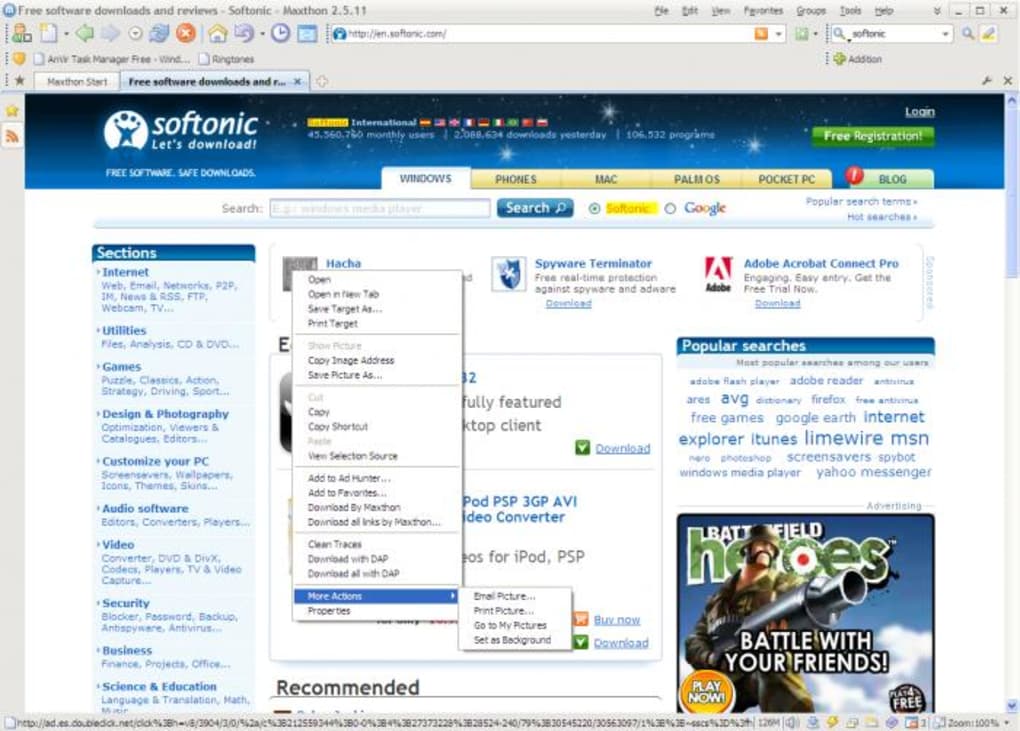
- Advanced screenshot tool with annotation capabilities.
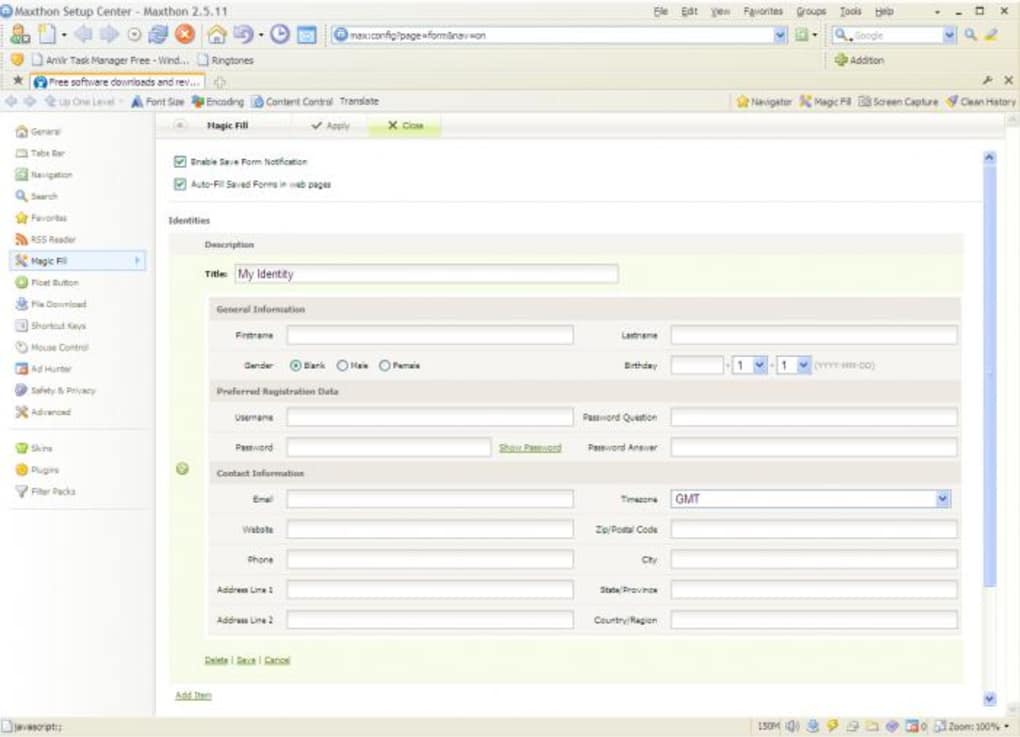
- Auto form‑filler for faster online transactions.
- Content control panel – disable images, scripts, or flash on demand.
- Integrated online notepad that syncs across devices.
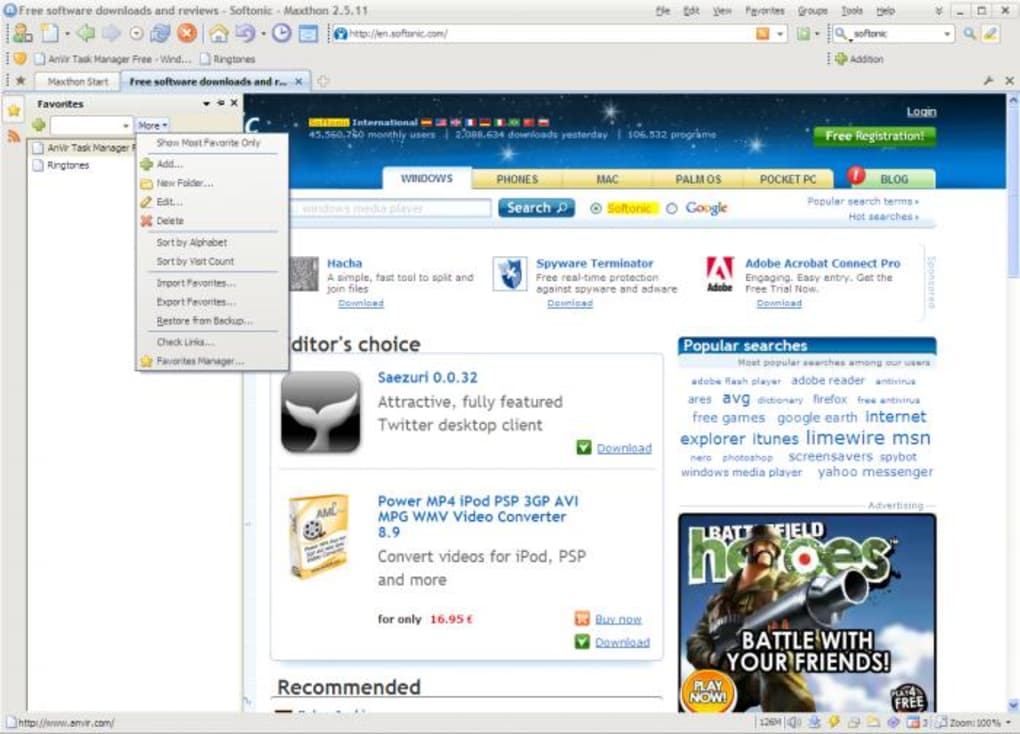
- Tab management options – vertical tabs, tab grouping, and reverse‑order favorites.
- Support for Maxthon add‑ons, expanding functionality beyond the core browser.
- Cross‑platform sync for bookmarks, passwords, and browsing history.
The real power of Maxthon lies in how these features interconnect. For example, you can set the ad‑blocker to activate automatically on news sites while keeping it off on trusted banking portals, preserving both speed and security. The screenshot utility doubles as a quick note‑taking tool; captured images can be annotated with text, arrows, and shapes, then saved directly to the online notepad for later reference.
Maxthon’s content control panel goes further than typical “disable images” switches—it allows per‑site script blocking, which is invaluable for reducing tracking scripts on privacy‑focused pages. Users who enjoy tweaking browser behavior will love the granular tab settings, such as controlling whether new tabs open in the background or foreground, and customizing the behavior of the status bar. Finally, the skin system isn’t just cosmetic; each skin can bring its own set of shortcut keys and default toolbar layouts, letting power users create a workflow that mirrors their favorite development or design environment.
All these options are accessible through a series of tabs that open within the main window, keeping the interface clean and avoiding the clutter of separate dialog boxes.
Installation, Usage & Compatibility
Step‑by‑Step Installation
Installing Maxthon Classic is straightforward on all supported platforms. Begin by visiting the official Maxthon website and clicking the “Download” button that matches your operating system. For Windows users, the installer is an .exe file; macOS users receive a .dmg package; Android and iOS devices download the app directly from Google Play or the Apple App Store.
Once the file is downloaded, run the installer and follow the on‑screen prompts—accept the license agreement, choose an installation directory (the default is recommended for most users), and decide whether to create a desktop shortcut. After the installation completes, launch Maxthon and you’ll be greeted by a brief “Welcome” tour that highlights the most important UI elements. You can skip the tour if you prefer to explore on your own.
First‑Run Configuration
On first launch, Maxthon opens a “Setup” tab where you can import bookmarks from other browsers, sign in to a Maxthon account for sync, and select your preferred skin. The import wizard supports Chrome, Firefox, Edge, and Internet Explorer, making the transition painless. If you already have a Maxthon account, simply log in to sync your existing data. The skin selector offers a preview of each theme; pick one that matches your aesthetic or productivity needs. After these initial steps, the browser’s main window appears with a clean toolbar that you can immediately begin customizing.
Operating System Support
Maxthon Classic runs on Windows 7, 8, 10, and 11 (both 32‑bit and 64‑bit), macOS 10.13 and newer, Android 6.0+, and iOS 12+. The application takes advantage of native APIs on each platform to ensure smooth scrolling, hardware‑accelerated rendering, and low memory consumption. On Windows, Maxthon can operate in “IE mode” for legacy sites while also offering a WebKit‑based rendering engine for modern pages, giving users the flexibility to switch between engines on a per‑tab basis. On mobile devices, the interface adapts to touch gestures, providing swipe‑to‑close tabs, pull‑to‑refresh pages, and a compact toolbar that maximizes screen real estate.
Daily Usage Tips
To get the most out of Maxthon’s customization, start by opening the “Menu Bar” (File, View, Tools) and exploring the sub‑menus. Disable any toolbars you never use to declutter the interface. Next, head to the “Status Bar” at the bottom, where you can toggle quick‑access buttons for ad‑blocking, script control, and the online notepad. For power users, the “Advanced Settings” tab lets you configure proxy servers, set default encoding, and manage security certificates. Remember to regularly check for updates; Maxthon’s auto‑update feature runs in the background and notifies you when a new version is ready, ensuring you stay protected against the latest web threats.
Pros, Cons & Frequently Asked Questions
Pros
- Unmatched UI customization – every element can be rearranged or hidden.
- Built‑in ad‑blocker, script blocker, and screenshot tool.
- Cross‑platform sync for bookmarks, passwords, and notes.
- Supports both IE and WebKit rendering engines for legacy compatibility.
- Free to download, with regular security updates.
Cons
- Large number of settings may overwhelm beginners.
- Some legacy features rely on the older IE engine, which can be slower on modern sites.
- Maxthon’s add‑on ecosystem is smaller than Firefox or Chrome.
- Occasional UI glitches on low‑resolution displays.
Frequently Asked Questions
Is Maxthon Classic free to use?
Yes, Maxthon Classic is completely free. You can download and use it without any subscription or hidden fees.
Can Maxthon sync my data across devices?
Absolutely. By creating a free Maxthon account, you can sync bookmarks, passwords, browsing history, and notes across Windows, macOS, Android, and iOS devices.
Does Maxthon support modern web standards?
Yes. Maxthon includes a WebKit‑based engine that fully supports HTML5, CSS3, and JavaScript ES6, ensuring compatibility with the latest websites.
How does the built‑in ad‑blocker work?
The ad‑blocker uses a regularly updated filter list. You can enable or disable it per site, and you can also import custom filter lists if you prefer more control.
Is Maxthon safe for online banking?
Yes. Maxthon includes SSL certificate validation and a sandboxed environment for each tab, reducing the risk of malicious scripts during banking sessions.
Our overall rating for Maxthon Classic is 4 out of 5 stars. The browser shines in customization and built‑in utilities, though its learning curve may deter casual users. For power users who love to fine‑tune every aspect of their browsing experience, Maxthon delivers a compelling, free alternative to mainstream browsers.
Conclusion & Call to Action
Maxthon Classic stands out in a crowded browser market by offering a depth of customization that few free alternatives provide. Its blend of an IE‑compatible engine, a modern WebKit core, and an extensive toolbox—including an ad‑blocker, screenshot suite, and online notepad—makes it a solid choice for users who demand flexibility without paying a premium. While the sheer number of settings can be intimidating at first, the initial setup wizard and comprehensive help documentation smooth the onboarding process. If you’re an Internet Explorer veteran looking for a fresh, feature‑rich experience, or a power user eager to sculpt every pixel of your browser, Maxthon Classic is worth a download. Click the button below to get the latest version, create a free Maxthon account, and start exploring a browser that truly adapts to you.







